Every creator has a clip that ends too soon. The shot looks right, then it stops two seconds before the beat drops. Until recently the options were unappealing: slow it down, loop it, or freeze the last frame. Each of those tricks tends to look obvious on screen. AI video tools can now invent the missing seconds by predicting what would reasonably happen next. Used carefully, the extension looks like more of the same shot. Used carelessly, it smears faces, warps hands, and announces itself immediately. The method below is a practical walkthrough, not a promise that every clip will hold up.
How the Extra Seconds Are Made
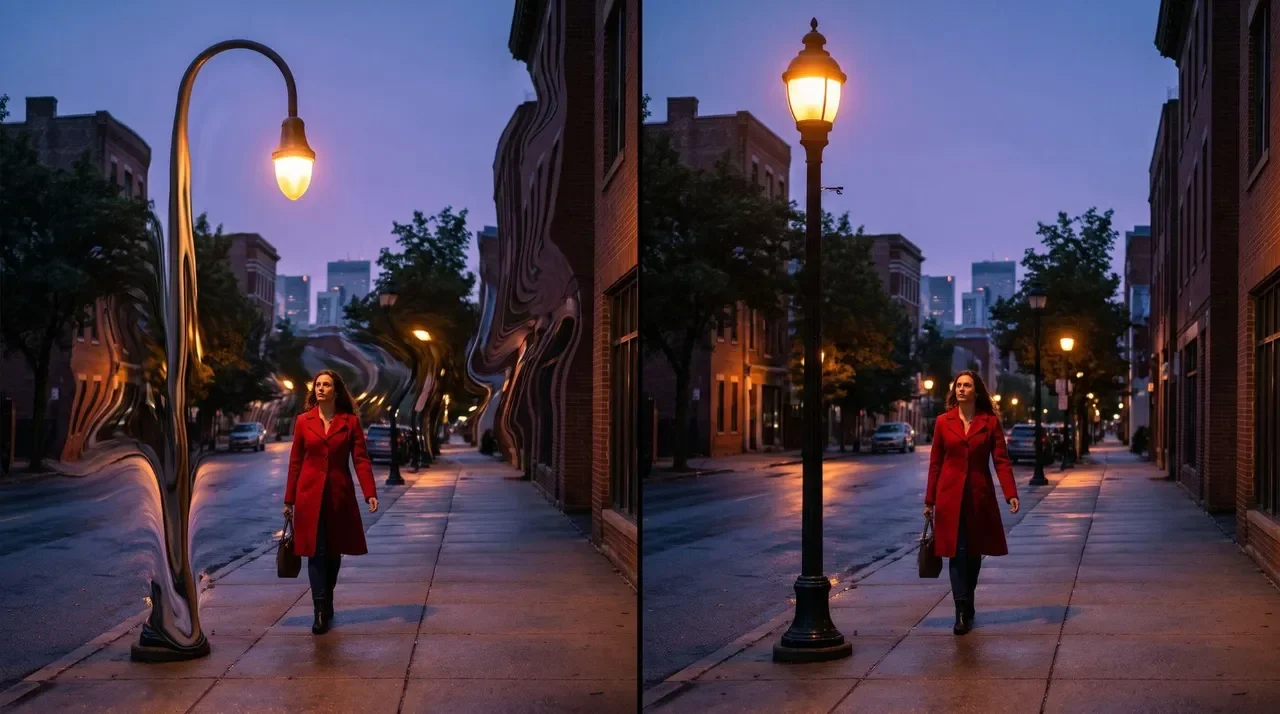
The tool reads the last frames of the clip, looking at the subject, the direction of motion, the lighting, and the camera path. It then predicts what should happen next and generates new frames to match. This is different from slow motion, which only stretches the frames you already have, so the action never goes beyond the original moment. Frame interpolation can smooth that stretch, but the story still ends in the same place. Generative extension adds new seconds of action: a wave keeps rolling, a car keeps driving, a product keeps turning. That extra room helps product reveals, travel shots that need a little more mood, and intros or outros that have to carry a caption or a music cue. The same family of tools is being used for still images as well; a related discussion of that adjacent craft is in how AI image tools are changing social media and digital marketing content.
The method works best when the camera is fairly stable, the subject is clearly visible, and the motion is simple. Fast cuts, crowds, hands, heavy motion blur, and readable text at the edge of the frame give the model less to work with, and often fail first. You do not need a studio for the workflow, but you do need a clip the model can actually read.
A Five-Step Walkthrough
First, choose the source carefully. A clean, well-lit ending of two or three stable seconds is more useful than a chaotic flourish. Check those last frames closely and trim away blur or a half-turned face, because the model builds from whatever you leave it. Second, upload the trimmed clip and set a modest extension, often two to five seconds, rather than asking for a whole new scene. If the tool asks for an image instead, export a sharp final frame and start from that. Third, write a prompt that continues the action already on screen, in plain language, and give the new seconds a job: finish a reveal, continue a walk, or leave room for a caption. Fourth, generate a few versions and watch them at full size, not just in a tiny preview. Fifth, cut the best result back into the original timeline and trim any frames where the image starts to drift.
Small habits improve the odds. Keep the original audio and edit the picture around it. If a face starts to smear, shorten the extension rather than raising the strength of the effect. A light color match and a bed of ambient sound can hide a small join. Before you publish, run a couple of test clips and check the tool’s limits on duration, resolution, watermarks, and commercial use. Dedicated extenders, including browser-based options such as CapCut’s AI video extender, are built for this job; your editor’s speed controls and optical flow still help when you only need a fraction of a second, and an upscaler can help when the new seconds look softer than the source.
The same process works for B-roll, product shots, travel footage, and social intros. You only need the clip, an extender, and your usual editing app. Decide what the new seconds must do before you generate them, and pick a target length that lines up with the music or voiceover. A short, plain purpose keeps the extension from feeling like empty filler. If generated footage looks softer than the original, a quick upscale can help the new seconds match the source detail, after which a light grade usually finishes the join.
Mistakes That Make the Extension Look Fake
The usual failures are easy to name. Asking for too many extra seconds. Prompting a new scene instead of a continuation. Accepting the first render without a frame-by-frame look at hands, eyes, and background edges. Leaving messy last frames on the upload. And publishing the result without a brief human check against the original shot. The tool is a way to finish a clip you already have, not a substitute for shooting enough footage. When the extra seconds look like the same moment, slightly longer, the work has done its job. If they do not, shorten the request and try again from a cleaner last frame rather than forcing a longer render.